How to start the 10 minute timer
Press Start when you are ready. This 10 minute timer begins at 10:00 and counts down toward 00:00. The page opens in Ready state, so you can choose a task, check the sound and position the window before any time passes. You do not need an account or a separate app.
- Choose one task and, if helpful, enter a short task label in Options.
- Choose Beep or Silent and use Test alarm before relying on the sound.
- Press Start. Use Pause for an interruption, Resume to continue and Reset preset to return to ten minutes.
The display shows minutes and seconds. After 100 seconds of active timing, it reads 08:20. If you pause at that point for forty seconds, the remaining time stays at 08:20; it starts moving again only after Resume. A pause is useful when your intention is to measure active time rather than the whole time spent away from a task.
People looking for a 10 min timer usually need the same ready-to-use countdown. You can leave the advanced settings closed and use the main controls alone. Space starts or pauses the countdown when focus is outside a text field. R resets it, and F requests fullscreen. A shortcut does not replace the normal button, so the tool also works with touch and keyboard navigation.
The 10 minute timer keeps its state next to the digits: Ready, Running, Paused or Finished. Progress supplies a second way to see how much of the session has passed. A label and a number carry the meaning even when you cannot distinguish the progress color. The page title also shows remaining time while the countdown is active.
| Control | What it does | When to choose it |
|---|---|---|
| Pause | Holds the current remaining time | A temporary interruption |
| Resume | Continues the held remainder | Returning to the same task |
| Reset preset | Stops timing and restores 10:00 | Abandoning or restarting the ten-minute task |
| Repeat | Starts a fresh round with your configured duration | Beginning another complete session |
If ten minutes feels too long for the next action, the 5 minute timer is ready for a quick transition. For a longer block, choose the 15 minute timer, 20 min timer or 30 minute timer. Each link opens its own default duration; editing this timer’s temporary duration keeps you on this page.
What fits into a ten-minute session
A ten minute timer gives a task a visible finish point. Choose something you can start now, with materials already nearby. Reading one chosen passage, sorting a small batch of messages or stepping away from a screen are possible uses. The countdown measures your chosen time; it does not promise how much work you will finish.
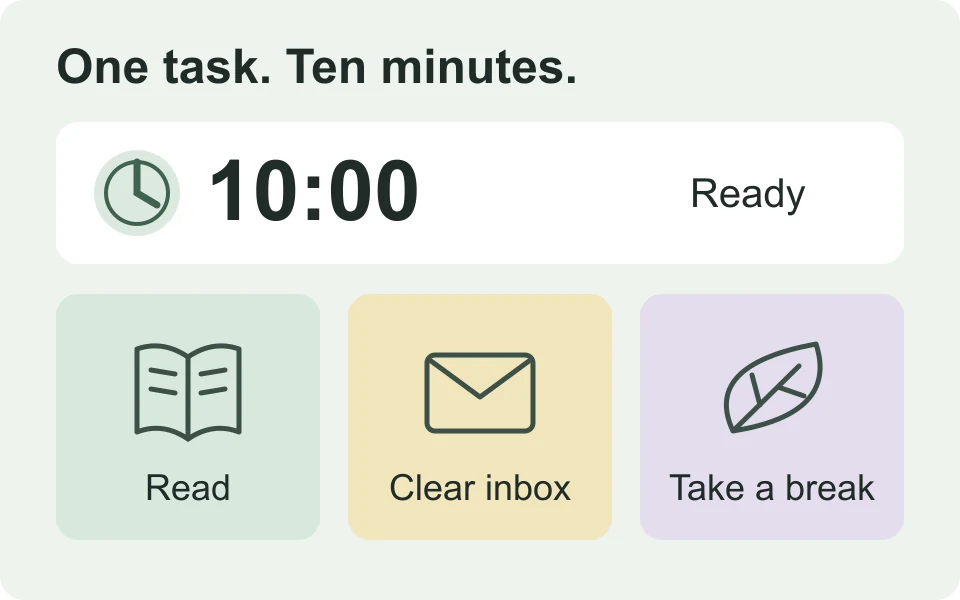
| Task | A possible ten-minute plan | Your finish cue |
|---|---|---|
| Read a passage | Open one section and make a short note as you read | Bookmark where you stopped |
| Sort messages | Review a selected batch rather than the whole inbox | Save unfinished replies as drafts |
| Take a screen break | Step away and choose what you will do on return | Come back when you see or hear Finished |
If you set a timer 10 minutes before a meeting, use the period for a specific preparation step, such as opening the agenda and writing one question. Leave enough separate time to join the meeting. A browser alert can be delayed, so a meeting calendar or device reminder should carry any deadline you cannot afford to miss.
For a projected group task, use the classroom timer and its larger display controls. A pomodoro timer adds planned focus and break phases. Choose an interval timer for consecutive work/rest rounds, multiple timers for simultaneous tasks, or the online stopwatch when you need to measure upward from zero.
Plan one small task
Before starting the 10 minute timer, write a finish point that you can recognize. “Review the first page and mark questions” is clearer than “finish all my reading.” You may reach the end early or need another round. Either outcome gives you information about the task without making the countdown a judgment about your performance.
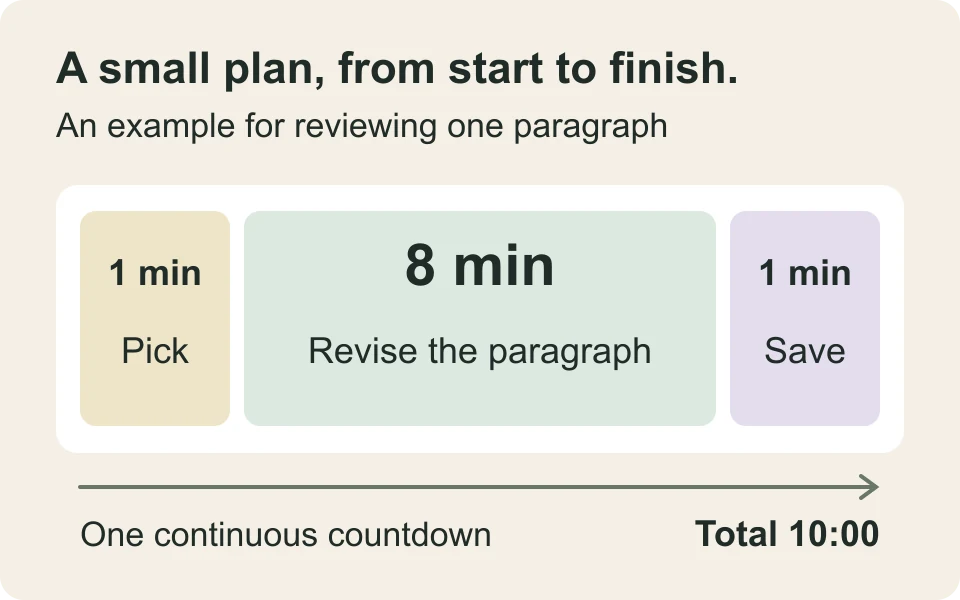
For example, open a draft and spend the first minute identifying the paragraph you want to revise. Work on that paragraph until the last minute, then save and note the next change. These are suggested divisions, not additional alarms. The main countdown runs continuously unless you press Pause. You can adapt the plan without adjusting any settings.
A 10 min timer can also separate two activities. Put the previous task away, take a short break and prepare the next task before the display reaches zero. If you are leaving the computer, check whether you can actually hear its audio from where you will be. Silent mode is useful only when you will return to look at the display.
Keep the task label simple. “Reading,” “Draft review” or “Break” is enough to remind you what the time is for. Avoid names, sensitive notes and information about students or clients, especially on a shared screen. The label belongs to the timer display and does not need to contain the whole task description.
Repeat a session without losing your settings
At completion, the 10 minute timer shows Finished and stays at zero. Press Repeat to start another round with the currently configured duration. If you changed it to twelve minutes, Repeat uses twelve; Reset preset returns this page to ten. Decide which action matches your next task before restarting.
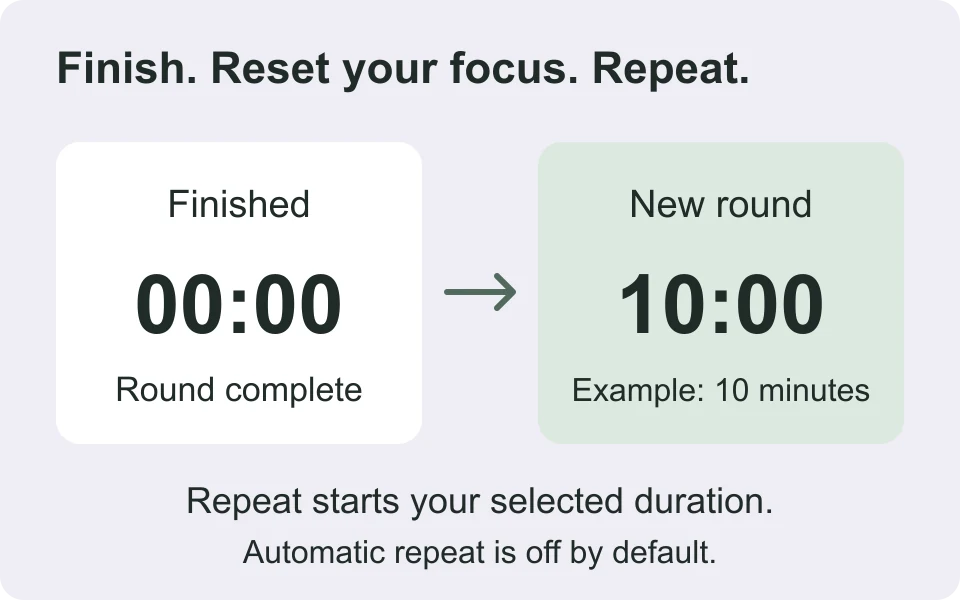
Automatic repeat is available in Options and is off initially. Enable it only when you deliberately want repeated sessions. Returning from a long background delay does not replay every missed round: the timer reports the overdue finish and begins a new round from recovery. For a fixed sequence with separate rest periods, use the schedule tools instead.
The ten minute timer can remember settings only when you enable Save on this device. Saving uses this browser’s local storage, with a separate record for each tool page. It does not create an account, synchronize between devices or publish a share link. On a public computer, leave saving off or clear saved settings before leaving.
After a reload, a saved running session is presented for review rather than silently restarting an alarm. You can restore its remaining time as a paused session or start fresh. A saved paused session can likewise be restored deliberately. Treat this as help with recovery, not evidence that a timer continued delivering alerts while the page was closed.
Alarm, pause and screen-sleep behavior
To use a 10 minute timer with alarm, turn Beep on and press Test alarm. Check the device volume, the selected audio output and any mute setting on the browser tab. The test plays a short locally generated beep. There is no ticking loop or background music, and the visual finish message remains available when sound is disabled.
Browsers can restrict sound that begins without user interaction. The tool prepares audio after your Start or Test alarm gesture, but playback can still fail or become inaudible. MDN’s autoplay guide explains these browser restrictions. If testing fails, keep the timer visible and use the on-screen status instead of assuming a later sound will work.
This 10 minute timer calculates the remainder from an end timestamp. It redraws the display when the browser runs a callback rather than subtracting one second on every callback. Ordinary background throttling therefore does not add each missed callback to the countdown. When execution returns after the deadline, the display catches up to zero and reports the overdue completion once.
A sleeping computer, suspended mobile browser or closed tab can delay or prevent an alert. Changing the system clock can also affect a timestamp-based countdown. Keep the page open and the device awake when timing matters. Use a dedicated device alarm for time-critical reminders; this page cannot guarantee an alert after the browser closes.
- Choose Silent for a quiet room and keep the completion status visible.
- Use Fullscreen to give the digits more space; Escape exits supported fullscreen.
- Enable Keep screen awake only if you want to request it while timing runs.
- Check the displayed awake status rather than assuming the request was accepted.
The Screen Wake Lock API requires browser support and a secure context. A device can release the request, including when the page becomes hidden or power settings intervene. The tool releases it when paused or finished and requests it again on return only if you enabled the option and timing is still running.
If you want a timer 10 minutes long with no sound at all, turn Beep off before pressing Start. There is no notification-permission prompt. The display, progress and status remain the available cues. Be careful about muting a countdown and then leaving the screen, because the finish may have no cue you can notice from elsewhere.
A 10 min timer on this page needs JavaScript for interaction. If scripts are disabled, the preset and these instructions remain readable, while the controls stay disabled. Loading the page over a working connection is required; offline reloading is not a supported feature. Once loaded, the countdown does not need an external timing API to calculate the remaining time.
If the display appears stale, return to the timer tab and read its status before starting another round. Use Pause if you need to inspect settings without consuming time. If local saving is blocked, the current page still works, but settings may not survive a reload. For a reproducible problem, send the page URL, browser version and the steps through Contact, leaving private task labels out of your message.
Frequently asked questions
How do I use a 10 minute timer?
Press Start. Use Pause to stop temporarily, Resume to continue and Reset to return to 10:00.
What happens when the 10 minute timer is up?
The display reaches 00:00 and shows Finished. An alarm plays if sound is enabled and the browser permits it.
Can I repeat the timer?
Yes. Press Repeat for a fresh ten-minute session. Automatic repeat is optional and starts only after you turn it on.
Will it work if I switch tabs?
The countdown recalculates elapsed time when the page runs again. A suspended page or sleeping device can delay an alert; keep the device awake when timing matters.
Why can I not hear the alarm?
Check the sound toggle, device volume and browser permissions, then use Test alarm. A visual Finished message remains available if audio is blocked.
Optional video: Ten-minute video countdown
This supplemental video includes a sound test, a countdown beginning at 0:10 and an extended alarm after 10:10. Its full runtime is 25:10. The interactive timer above remains available without loading this video.
Video credit: Timer Clock Alarm. Loading the player connects to YouTube. Watch on YouTube.