Set up a classroom timer
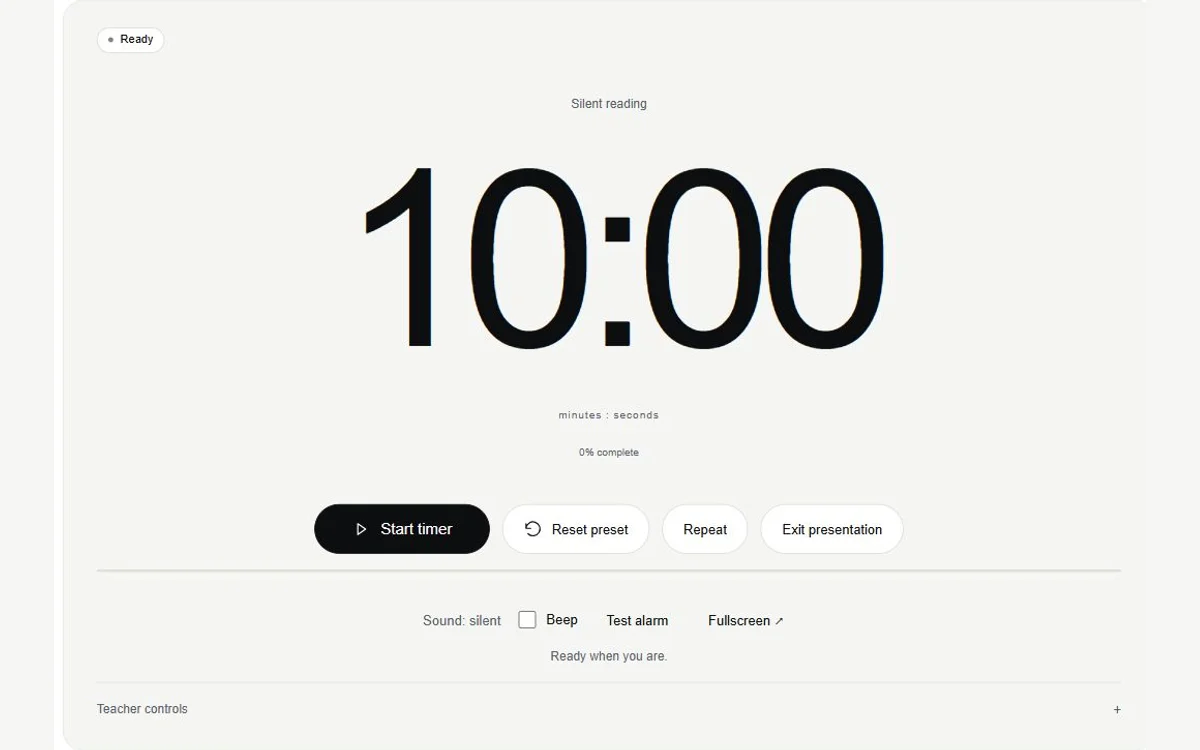
Choose the activity, set its duration and press Start. The classroom timer begins with a ten-minute default, but you can enter any whole-second duration from one second to twenty-four hours. Add a short task label, choose Silent or Beep and make sure the display is visible before asking the group to begin.
- Write a brief label such as “Silent reading” and set the activity length.
- Adjust digit size and contrast, then check the screen from the back of the room.
- Press Start. Keep Pause available for interruptions and explain the finish cue in advance.
The state is written beside the remaining time. Ready means the activity has not started; Running means the countdown is moving; Paused holds the remainder; Finished means it reached zero. Progress is visible as well as numerical, and the optional final-minute message adds a text cue. No flashing animation is needed to communicate the change.
A 10 minute timer for kids should have an understandable task and finish rule. Explain whether zero means pencils down, finishing the current sentence or moving to another activity. The tool cannot decide the classroom routine, so the teacher’s instruction carries that part of the task. Students do not need accounts or devices to follow a projected display.
For a personal countdown with fewer presentation options, open the 10 minute timer. This page adds group display controls to the same basic Start, Pause, Resume, Reset and Repeat actions. Keep the task itself ready before starting so the group does not spend its timed activity waiting for materials or an explanation.
If you search for a 10 minute timer classroom display, the default is already set to that length. You can change it for a shorter transition or a longer activity without creating a new page. Reset preset returns to the default ten minutes; Repeat uses the configured duration. Read the starting value before opening another round.
Choose a display the whole group can read
Set the classroom timer up on the actual screen you intend to use. Projectors, television displays and small laptop windows can make the same digits appear very different. Increase text size, reduce distractions around the browser and check both the digits and the written status from the seats farthest away.
| Group activity | Possible display setting | Completion mode |
|---|---|---|
| Silent reading | Short task label and large digits | Silent, with Finished visible |
| Group task | Large digits with progress visible | Optional tested beep |
| Discussion | High contrast and final-minute text | Written cue followed by teacher instruction |
See other publishers’ display examples
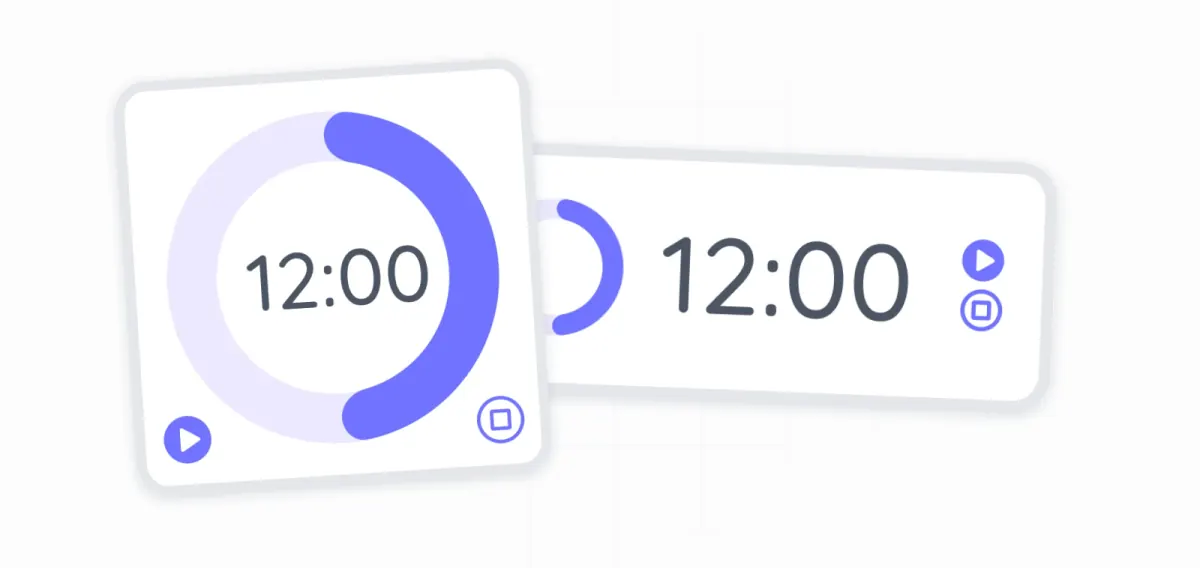
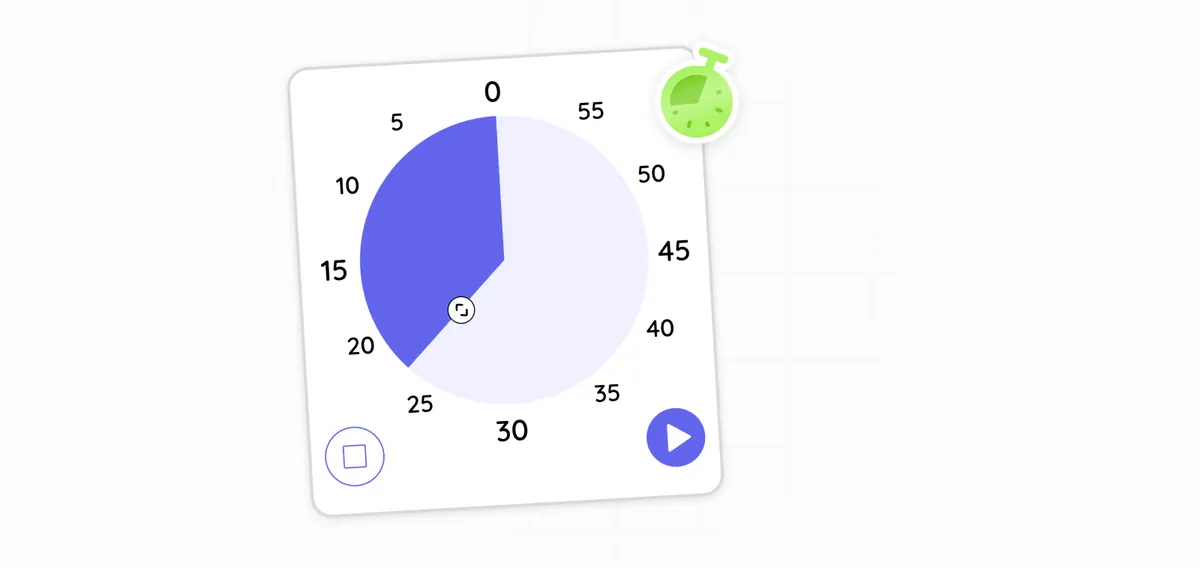
These are examples, not requirements for a lesson. Match the display and cue to the group and activity. A beep may suit one room and interrupt another. Explain the meaning of progress before relying on it, and keep the written time available for anyone who finds a visual bar less clear than the digits.
Project large digits and a short task label
Use a label that a learner can read at a glance: “Silent reading,” “Discuss question two” or “Put materials away.” The label is a reminder, while the assignment stays in your usual teaching material. Avoid student names, scores, private support needs or any information you would not want visible to the room.
A 10 minute timer for kids can be shown in presentation mode with teacher controls collapsed. Adjust digit size before the activity and use high contrast if the room or projector makes muted colors hard to see. The countdown still shows its status in words, so its meaning does not depend on a colored ring or strip.
Presentation mode expands the classroom timer within the page. Fullscreen requests a browser-supported full-screen view. If fullscreen is unavailable or refused, presentation mode remains useful; you can also maximize the browser or adjust its zoom. Check that the display fits without cutting off the label or controls.
For a staged reading example, the task label is “Silent reading,” the initial countdown is 10:00 and sound is off. Before starting, tell the group how to mark a stopping point at zero. You might leave an extra minute outside the timer for instructions and collecting materials. The timer measures the chosen activity period, not those separate preparation steps.
If the next transition only needs five minutes, open the 5 minute timer or change the classroom duration deliberately. A 30 minute timer can serve a personal half-hour task. Keep this display when you need presentation settings for the group rather than switching simply because the number changed.
Keep teacher controls available
The teacher controls drawer contains the duration, task label and display settings. You can collapse it for a cleaner group view and reopen it when needed. Pause remains a clear action during timing. When a question or announcement should not consume activity time, press Pause, address it and use Resume to continue from the same remainder.
During a running classroom timer, changing the next duration should not silently rewrite the current activity. Stop or reset the session before applying a new length. If you paused to address a brief interruption, Resume continues the same round. If the lesson has changed entirely, Reset preset or a fresh configured duration gives the group a clear new start.
Keyboard shortcuts work when focus is outside a field: Space starts or pauses, R resets, and F requests fullscreen. While you type a task label, those letters and spaces belong to the field. The buttons remain available if shortcuts are inconvenient, and visible focus helps you find the action when navigating with Tab.
Exiting fullscreen returns to the regular view without resetting the remainder. Reopen teacher controls if necessary and read the state before making another change. If fullscreen fails, the tool reports that failure instead of pretending the request succeeded. Timing can continue in the normal page layout while you adjust the browser window.
| Classroom situation | Teacher action | What the timer does |
|---|---|---|
| Brief explanation during reading | Pause, then Resume | Holds and continues the remainder |
| The assignment changes | Reset or configure a new stopped round | Discards the old countdown deliberately |
| Time reaches zero | Read Finished and give the next instruction | Stays at zero until another action |
| Two groups need different deadlines | Open multiple timers | Gives each countdown an independent state |
For separate group deadlines, multiple timers can show independent labeled cards. Those timers can run concurrently, which is different from one class activity shown on a single large display. Keep group labels generic and avoid including names or other private student information.
Use silent alerts and accessible progress
Silent mode disables the completion beep. Finished remains visible, along with zero remaining time. Before a quiet activity, explain that the group should watch for the written finish message or wait for the teacher’s instruction. A silent display cannot notify someone who cannot see the screen, so choose an appropriate additional classroom cue when needed.
A 10 minute timer classroom activity can include an optional final-minute warning. When one minute remains, the timer adds a written cue with the visual treatment. It does not flash, shorten the deadline or create another alarm. Turn this option on only when the advance reminder helps the activity, and explain that one minute still remains.
The classroom timer uses numerical time, state text and progress together. Color is supplementary. Keep task labels short enough to fit at the selected text size, and check readability after increasing browser zoom. If a table or settings panel becomes wider than a narrow screen, scroll that region rather than reducing all text to an unreadable size.
For an audible finish, test the beep from the teacher device with the intended speakers connected. Confirm device volume, the audio output and browser-tab mute settings. The tool prepares audio after a deliberate Start or Test alarm action. Browser autoplay rules can still block playback, and the visual finish remains the fallback.
Keep screen awake is an optional request while the countdown runs. The Screen Wake Lock API depends on browser support and can be refused or released by the device. Check the shown awake status and the computer’s display settings before a lesson; the option cannot guarantee that every projector computer remains awake.
If the page is hidden or the device sleeps, redraws and audio may be delayed. The next callback recalculates the countdown from its deadline, so ordinary callback throttling does not extend the activity by every missed second. Returning after completion produces an overdue finish rather than a series of missed sounds. A closed browser cannot be relied on to alert the room.
A 10 minute timer for kids does not require student information, accounts or a camera. Labels remain in the page unless you enable Save on this device, which uses local browser storage. On a shared classroom computer, use generic labels and clear saved settings after use. Saving does not upload classroom notes or publish timer state in a share URL.
Restoring a saved session requires a deliberate choice. A running snapshot is shown for review and can be restored as paused, so reopening the browser does not launch an unexpected alarm. If storage is blocked by the school’s browser policy, the active page can still time the activity without saving its settings.
Before the class arrives, make a short trial: choose a brief duration, start, pause, resume and check the finish cue on the real display. This helps you notice muted speakers, clipped labels or a projector power setting. If you report a problem through Contact, include the browser, page and steps, while leaving student information and private labels out of the message.
Frequently asked questions
Can I project the timer onto a screen?
Yes. Open presentation or fullscreen mode and adjust text size for the room. Test readability before the activity.
Can I use it without sound?
Yes. Turn off the beep and use the Finished label and visible progress.
Do students need accounts?
No. The tool requires no accounts and asks for no student information.
Can I show a task title?
Yes. Add a short task label such as Silent reading. Do not enter private student information.
Does it keep the projector computer awake?
An optional screen-awake request can help in supported browsers, but it may be released. Check the computer display settings before class.