Create multiple timers for separate tasks
Give each card a short name, choose its duration and start it. Multiple timers let separate tasks count down at the same time, with each card keeping its own remaining time and state. The page begins with two cards, and you can add more up to a maximum of eight.
- Name the tasks and enter each duration in whole seconds.
- Test sound or choose Silent on the relevant cards.
- Start a card individually, or use Start all for Ready and Paused cards.
Each duration must be from one second to twenty-four hours. Blank values, negative numbers, fractions and values outside that range show an error beside the field. Labels can contain up to sixty characters. Keep them brief enough to distinguish cards at a glance rather than using the timer name as a full work note.
The multi timer display shows Ready, Running, Paused or Finished on every card. These states are independent. Pausing a reading task does not pause a break task, and resetting one card does not reset its neighbors. Read the card name and its current state before choosing an individual action.
If one task is all you need, the 10 minute timer provides a simpler single countdown. This page is useful when different activities have overlapping deadlines. It does not require an account, an external timing service or separate windows for every task.
Multiple countdown timers can also have different sound preferences. Choose Silent for a task whose finish you can watch and Beep for a task you need to hear. Those are per-card choices. Test audio before depending on it, because speaker volume, browser policies and a sleeping device can prevent an audible cue.
Read and control timers side by side
Multiple timers keep their names, digits and state labels together on each card. Group controls sit above the cards, while individual controls belong to the task they affect. A completion queue collects finished labels so simultaneous finishes remain readable after the sound has stopped.
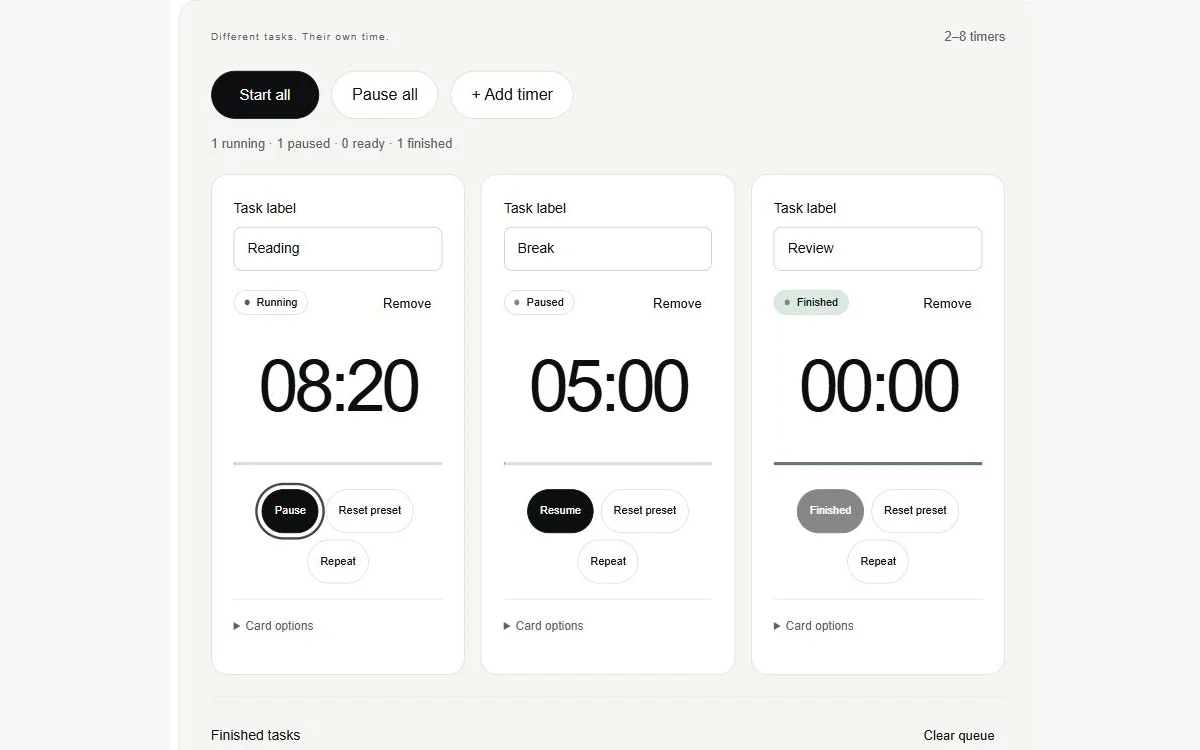
| Staged task | Example state and remainder | Appropriate individual action |
|---|---|---|
| Reading | Running, 08:20 | Pause to hold its remainder |
| Break | Paused, 05:00 | Resume to continue it |
| Review | Finished, 00:00 | Repeat for a fresh round |
See other publishers’ simultaneous-timer examples
These are staged examples of independent states, not actual user activity. The Reading card can keep running while Break remains paused and Review stays finished. Start all resumes eligible cards without treating zero on a Finished card as permission to restart it. Repeat is the deliberate action that starts that task again.
Name each task clearly
Use labels such as “Reading,” “Break” and “Review” when those words describe your tasks. If you need two reading groups, a short generic label such as “Reading A” and “Reading B” can distinguish them without including student names. Avoid private work details on shared screens and in screenshots sent for support.
The multi timer tool treats a label as ordinary text. It does not turn the label into markup, an address or a public share link. Labels stay in the active page unless you enable local saving. Saving keeps a browser record on this device; it does not publish the names or synchronize the cards to another computer.
For example, start a ten-minute Reading countdown and a fifteen-minute Review countdown together. At ten elapsed minutes, Reading is Finished and Review has 05:00 left. You can press Repeat on Reading to start another reading round while Review continues toward its original deadline. The two timers no longer share a finish time.
If you pause Reading at 08:20, Review continues running. Waiting forty seconds does not consume any of Reading’s held remainder. Resume gives Reading a new deadline from that 08:20 remainder. Its pause does not add forty seconds to Review, because each countdown owns its own timing state.
Multiple countdown timers can support group activities with different durations. The classroom timer is better when one group needs a large projected display and teacher settings. Use this page when the distinction between concurrent tasks matters more than making one countdown as large as possible.
Use group controls without resetting finished tasks
Start all affects Ready and Paused cards. A Ready card starts its configured duration; a Paused card resumes its held remainder. A Running card continues unchanged, and a Finished card remains at zero. This makes the group action useful for beginning or returning to several tasks without accidentally giving completed work another round.
Pause all affects Running cards and holds their current remainders. Already Paused cards stay paused, Ready cards stay ready and Finished cards stay finished. If the group contains no running countdown, Pause all has nothing to pause. The state summary helps you inspect the result rather than guessing which cards changed.
| Card state before group action | Start all | Pause all |
|---|---|---|
| Ready | Start its configured duration | Keep Ready |
| Running | Continue the same deadline | Hold its remainder |
| Paused | Resume its held remainder | Keep Paused |
| Finished | Keep Finished | Keep Finished |
The multi timer tool lets you remove cards, subject to keeping at least two on this page. Removing a running card asks for confirmation because its active countdown will disappear. Copy any label or information you still need before removing it. Add timer refuses a ninth card rather than hiding or replacing an existing task.
When editing a card, pause and reset it before applying a new duration. The field should not silently change a deadline already running. Reset preset restores that card’s initial duration, while Repeat uses its applied configuration. Read the digits after editing and before starting so the card matches your intended time.
Handle simultaneous alarms and paused timers
When multiple timers finish in the same update, all their labels appear in the completion queue. The page produces at most one short beep for that batch if at least one finishing card has sound enabled. This avoids overlapping alarms while preserving the information that several tasks ended.
If the browser returns late from the background, several deadlines may already have passed. The next update catches up every card independently, lists the overdue finishes and avoids replaying a separate series of missed sounds. A task that still has time left continues with its correct remainder. Finished cards stay finished until you choose another action.
Multiple countdown timers calculate their remainders from individual end timestamps. Callback delays therefore do not simply add one second to every card for each missed redraw. This helps the display recover after ordinary background throttling, but it does not guarantee that a suspended browser or sleeping device can deliver an alert at the intended instant.
Keep the tab open and the device awake when you need to notice finishes promptly. For unattended cooking, medication, emergencies or other safety-critical timing, use appropriate dedicated equipment rather than treating browser alerts as guaranteed alarms. This page is a general utility, with visible states and deliberate controls for tasks you can supervise.
Test the beep after connecting the speakers you intend to use. Check device volume, the output device and whether the tab is muted. Browser autoplay restrictions can still block sound despite Beep being selected. The completion queue and written Finished states remain available if sound is blocked or muted.
The multi timer tool has group summaries for the number of Ready, Running, Paused and Finished cards. It announces meaningful state changes without reading every card’s remaining seconds aloud. Color is supplementary; names and written states supply the meaning. On a small screen, cards stack so each task keeps its controls nearby.
Fullscreen can give the collection more space, subject to browser support. Escape exits supported fullscreen. Keep screen awake is an optional request while at least one countdown runs, and it is released when none run. The wake-lock documentation explains why the device may still deny or release that request.
Saving is optional and applies to the collection on this device. When enabled, it stores card settings and snapshots in a small local browser record. After a reload, you review the saved collection before restoring it. Running snapshots restore as paused with a known remainder, and Finished snapshots remain finished; opening the page does not silently sound an old alarm.
If saving is blocked, the current page still works, but the collection may be lost on reload. Clear saved settings removes this tool’s local record. It does not affect files or notes outside the site. On a shared computer, choose generic labels, leave saving off when possible and clear the record before leaving.
Use the interval timer for a consecutive work/rest sequence rather than concurrent cards. Use the online stopwatch to record how long steps actually took. Those tools answer different timing questions, so choose the workflow that matches the task rather than adding extra cards solely to imitate a sequence.
If a card behaves unexpectedly, note its configured seconds, state and the exact group or individual action you used. Include the number of cards and whether two deadlines were the same when reporting through Contact. Leave private labels out of the report; generic names and numeric settings usually reproduce the issue clearly.
Frequently asked questions
Can timers have different durations?
Yes. Each card has its own duration and remaining time.
Does Pause all reset the countdowns?
No. It preserves the remaining time of each running timer.
What happens if two timers finish together?
Both labels appear in the completion queue. One short sound avoids a burst of overlapping alarms.
Are task names uploaded?
The tool keeps task labels locally and does not transmit them. Hosting logs and any later analytics must be disclosed separately.
How is this different from an interval timer?
Multiple timers run concurrently. An interval timer moves through consecutive work and rest phases.