Build an interval timer routine
Enter a work period, a rest period and a number of rounds, then inspect the preview before pressing Start. The interval timer runs those phases in order. Its default example uses thirty seconds of work, fifteen seconds of rest and three rounds, without a rest after the final work period.
- Enter whole-second work and rest durations and a whole-number round count.
- Choose whether to include a final rest and check the total routine length.
- Test sound or select Silent, then Start the complete routine.
Work must be from one second to sixty minutes. Rest can be zero to sixty minutes, rounds can be one to ninety-nine, and the full routine must fit within twenty-four hours. Blank values, fractions and out-of-range entries show a specific error. A zero rest is valid; it means the next work round follows immediately.
The display identifies Work or Rest, the current round, the phase remainder and the overall remainder. Those values answer different questions. Phase time tells you when the next change occurs; overall time tells you how much of the complete routine remains. Read the text as well as progress rather than interpreting a color alone.
Use a work rest timer for a sequence whose periods need distinct labels and boundaries. This page schedules time; it does not prescribe an exercise plan or certify that a particular routine is safe or effective. Choose durations and activities appropriate to your own task, and use professional guidance where the activity requires it.
If you only need one continuous period, open the 10 minute timer. An interval routine has consecutive phases, while a single countdown has one deadline. A repeating timer on this page follows the round count you enter and stops at the end of that routine instead of silently creating an unlimited sequence.
Understand the work and rest schedule
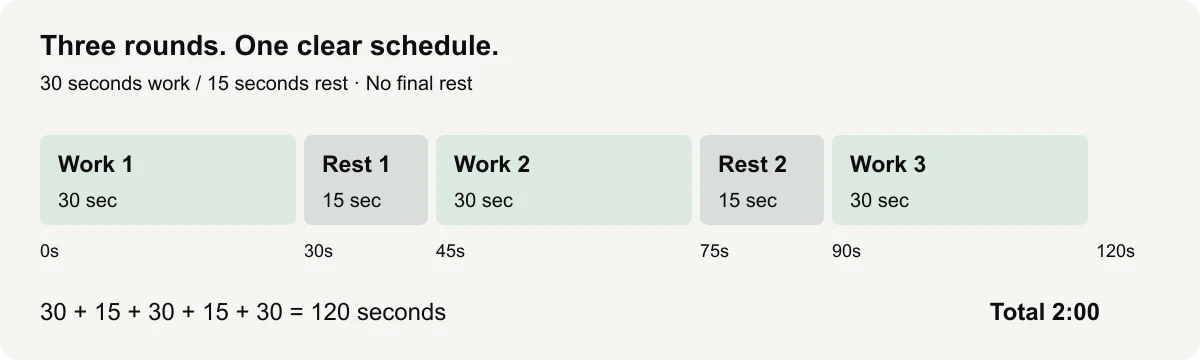
The interval timer preview shows the entire routine before you start. With thirty-second work, fifteen-second rest and three rounds, it contains three work periods and two rests. The total is 120 seconds, or 2:00. A final rest is excluded by default, which is why this example ends immediately after Work 3.
| Phase | Start at elapsed seconds | End at elapsed seconds | Duration |
|---|---|---|---|
| Work 1 | 0 | 30 | 30 seconds |
| Rest 1 | 30 | 45 | 15 seconds |
| Work 2 | 45 | 75 | 30 seconds |
| Rest 2 | 75 | 90 | 15 seconds |
| Work 3 | 90 | 120 | 30 seconds |
The phase change occurs at the boundary. At thirty elapsed seconds, Work 1 is over and Rest 1 begins with fifteen seconds remaining. At forty-five seconds, Work 2 begins. At eighty seconds, the correct state is Rest in round two, with ten seconds left in that phase and forty seconds left in the routine.
Calculate rounds and total time
For a work rest timer without final rest, total seconds equals work seconds multiplied by rounds, plus rest seconds multiplied by one fewer than the number of rounds. Written with parentheses, the example is (30 × 3) + (15 × (3 − 1)) = 120. The parentheses make it clear that only the rest count is reduced.
Including final rest changes the rest count to the full number of rounds. The same settings then give (30 × 3) + (15 × 3) = 135 seconds, or 2:15. Changing this checkbox therefore changes the finish time as well as the visible phase list. Check the preview again after every schedule edit.
The interval timer can also run longer work blocks. Two ten-minute work periods with a two-minute rest between them total twenty-two minutes without final rest. If you want one uninterrupted twenty-minute task instead, the 20 min timer is a simpler choice. Similar totals do not make the workflows interchangeable.
With one round and final rest off, there is only one work phase. The formula still works because rest is multiplied by zero. With zero rest and several rounds, the preview contains consecutive work phases and no empty rest phases. A round boundary can still be identified even though no recovery time is inserted.
| Settings | Without final rest | With final rest |
|---|---|---|
| 30 seconds work, 15 rest, 3 rounds | 120 seconds | 135 seconds |
| 60 seconds work, 0 rest, 3 rounds | 180 seconds | 180 seconds |
| 30 seconds work, 15 rest, 1 round | 30 seconds | 45 seconds |
Choose whether to include the final rest
A repeating timer with a final rest lets the routine end after that last rest period. Without it, Finished appears at the end of the final work period. Neither choice is universally preferable. Use the checkbox to express the schedule you actually want rather than assuming the timer will infer a rest from the activity.
For example, you might alternate short file-review periods with time to write a note between them. If the final action is to save and leave, you may not need a timed final rest. If a separate final pause is part of the workflow, include it so the overall preview counts it. The timer displays the choice rather than hiding it in the total.
An interval timer routine runs once through its chosen rounds. When it reaches the end, it stays Finished until you deliberately repeat or reset. Repeat begins a new complete routine with the applied settings. Reset returns the applied routine to Ready state, allowing you to inspect the preview before starting again.
For a specific focus and short/long-break pattern, open the pomodoro timer. For two tasks that need deadlines at the same time, use multiple timers. This tool runs consecutive phases, so a rest phase cannot run alongside a separate work phase as if they were independent cards.
Pause and recover a delayed phase correctly
Pause holds the entire interval timer routine, including its current phase and overall remainder. Resume continues the same schedule from that held point. If you pause ten seconds into a fifteen-second rest, five seconds of that rest remain. Time spent paused is excluded, and the next work phase does not begin until those five active seconds pass.
Change the schedule while stopped. If a routine is running or paused, reset it before applying different work, rest or round values. Replacing settings mid-phase would make the current round hard to interpret, so the tool asks you to make that change deliberately. The displayed preview should always describe the routine that will actually run.
The work rest timer derives the active phase from the complete schedule and elapsed time. A browser callback that arrives late does not add its delay to every phase. If the page returns at eighty elapsed seconds in the default example, it shows Rest 2 with ten seconds remaining rather than restarting a phase it already missed.
Missed transitions do not produce a burst of sounds. The timer updates to the current phase and can give at most one short transition or overdue finish cue on recovery. It does not replay all the work/rest boundaries that passed while the browser could not run. Keep the display visible if noticing every phase exactly when it changes matters to your task.
Test the beep before starting. Beep is optional and can mark phase changes; Silent keeps those changes visible without sound. MDN’s autoplay guide describes why browsers can restrict playback despite a sound option being enabled. Device volume, audio output and tab muting also determine whether a working beep is audible.
The repeating timer has written phase names and a round counter, so sound is not the only information available. Fullscreen can enlarge the phase and digits. Space starts or pauses outside text fields, R resets the routine, and F requests fullscreen. A fullscreen failure leaves timing available in the regular layout with a visible message.
Screen sleep and suspension can delay audio even when the displayed schedule catches up later. Keep the tab open and the device awake. An optional wake request may help in a supported browser, but screen wake locks can be released or refused. The tool reports the current status instead of guaranteeing an awake device.
Optional local saving remembers the applied routine in this browser. It is off until selected and does not transmit settings to a timing server. A saved running snapshot is offered as a paused restore choice rather than silently starting on page load. Clearing saved settings removes the local record; private-browsing policies or storage restrictions can prevent saving.
Before using a longer interval timer routine, try the default two-minute example and compare the preview with the phase changes. Confirm whether final rest is included, whether the beep is audible and whether Pause holds the whole schedule. These checks make the selected behavior concrete without claiming certified timing accuracy across every browser or device.
If the result seems wrong, record the work seconds, rest seconds, rounds and final-rest setting, then note the phase and remainder you expected. Send those steps through Contact with the browser and page URL. Avoid including private task descriptions; the numeric settings are usually enough to reproduce a schedule problem.
Frequently asked questions
How is the total routine calculated?
Without a final rest, total seconds = work seconds multiplied by rounds + rest seconds multiplied by rounds minus one. With a final rest, include rest after every round.
Can the rest period be zero?
Yes. A zero rest period means work rounds continue without an intervening rest countdown.
Does Pause stop the entire routine?
Yes. It pauses the schedule and preserves the active phase and overall remaining time.
What happens if the browser misses a phase change?
The display catches up to the scheduled phase when it runs again. It should not replay a burst of missed sounds or add extra time.
How is this different from a Pomodoro timer?
Intervals use your chosen work, rest and round values. The Pomodoro page starts with a specific focus and break pattern.